Anonymize a Photo Online
Faces, license plates and hidden GPS data, all handled in one pass before you share.
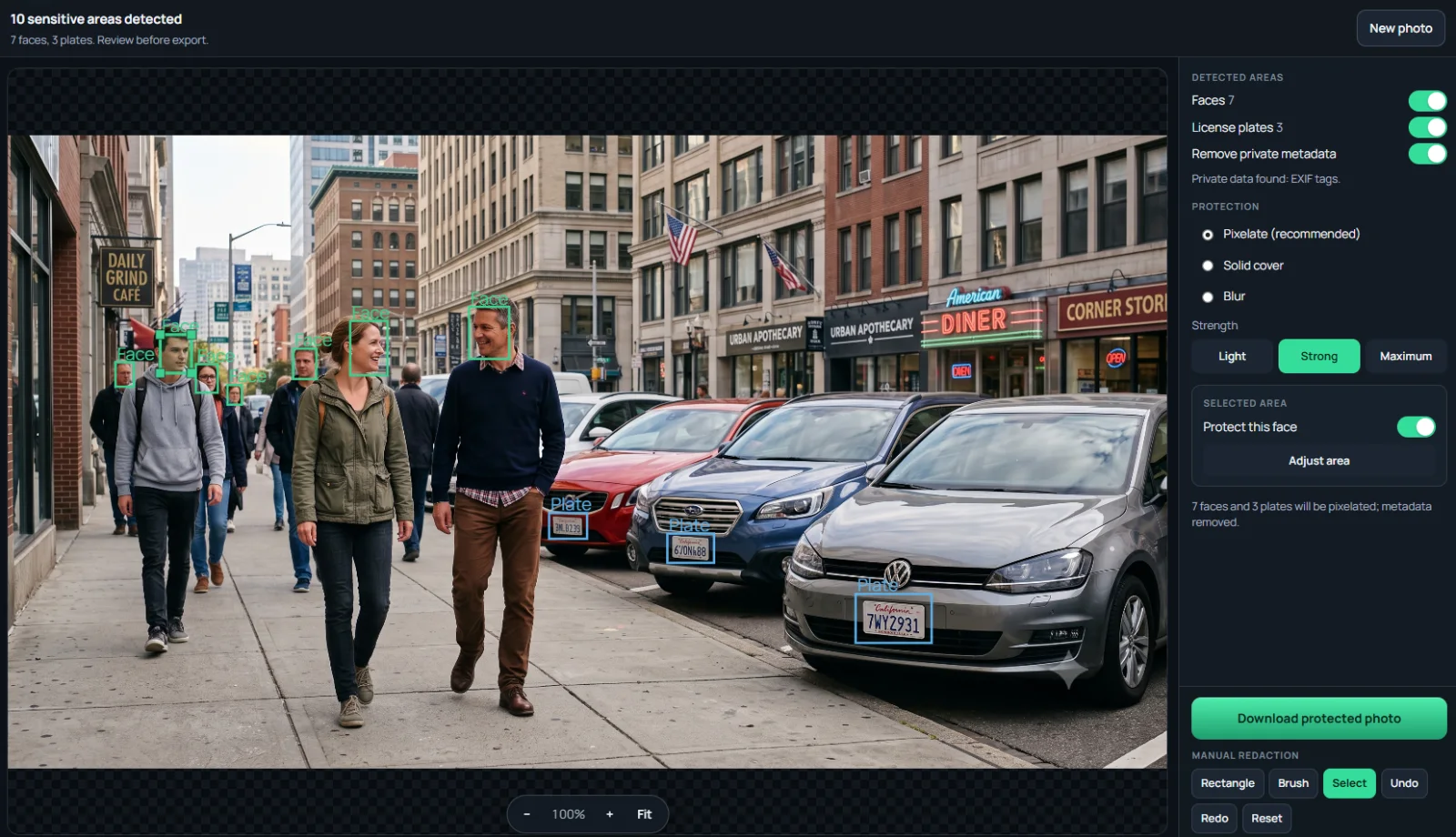
How to anonymize a photo in 3 steps
-
Choose your photo
One photo or up to 20. JPG, PNG, WebP and HEIC.
-
Review faces, plates and metadata
Everything detected is listed. Toggle, resize, or add manual boxes for anything else.
-
Download the anonymized copy
Pixels are rewritten and GPS, device and date tags are removed.
What makes a photo identifiable
A photo identifies people in two ways: what you can see and what the file knows. Anonymizing means dealing with both.
| Identifier | Handled by |
|---|---|
| Faces | Automatic detection, pixelate, blur or solid |
| License plates | Automatic detection, strong pixelation |
| Name tags, house numbers, screens | Manual box and brush |
| GPS location | Removed on export |
| Camera serial, date, device | Removed on export |
Who uses a photo anonymizer
- Journalists protecting sources and bystanders
- Researchers preparing image datasets
- Teachers and parents sharing class photos
- Marketplace sellers posting from home
- HR and safety teams documenting incidents
- Anyone posting street or travel photos
Privacy
Your photo is processed inside this browser tab. The original, the detected areas and the exported file are never sent to a Pixhide server.
Good to know
Automatic detection can miss small, angled or partly covered faces and plates, and it does not read text. Zoom in on the preview and cover anything else by hand. Batch mode handles up to 20 images per selection. There is no daily quota, so you can start the next batch right away.
Ready to try it on your own photo?
Choose photosFrequently asked questions
How do I anonymize a photo?
Open it on this page. Pixhide detects faces and license plates, hides them, and strips GPS and device metadata on export. Review the highlights, cover anything else by hand, and download.
What does anonymizing a photo remove?
Visible identifiers (faces and license plates, plus anything you cover manually such as name tags or house numbers) and hidden ones (GPS location, camera serial, date, device and author tags).
Can I keep some faces or plates visible?
Yes. Every detection has its own toggle, and whole categories can be turned off in the sidebar.
Is a pixelated photo anonymous under GDPR?
Hiding faces and plates removes the most direct identifiers, but context such as clothing, location or captions can still identify someone. Review the whole image, and use solid cover where the risk is high.
Can I anonymize many photos at once?
Yes. Drop up to 20 photos. Faces and plates are hidden and metadata removed in each one, delivered as a ZIP.
Are my photos uploaded?
No. Everything runs in your browser. That matters most for exactly the photos you want to anonymize.